Guide for Linking HyperX Headset to PC: Swift Solutions for 2025
In 2025, HyperX headsets are set to deliver superior sound quality with advanced noise-canceling technology and improved plug-and-play compatibility, thanks to smarter drivers built into Windows updates. However, users may still encounter connection issues or need to update drivers or firmware. This article provides a comprehensive guide on troubleshooting and connecting HyperX headsets to PCs.
Connecting and Troubleshooting Wired HyperX Headsets
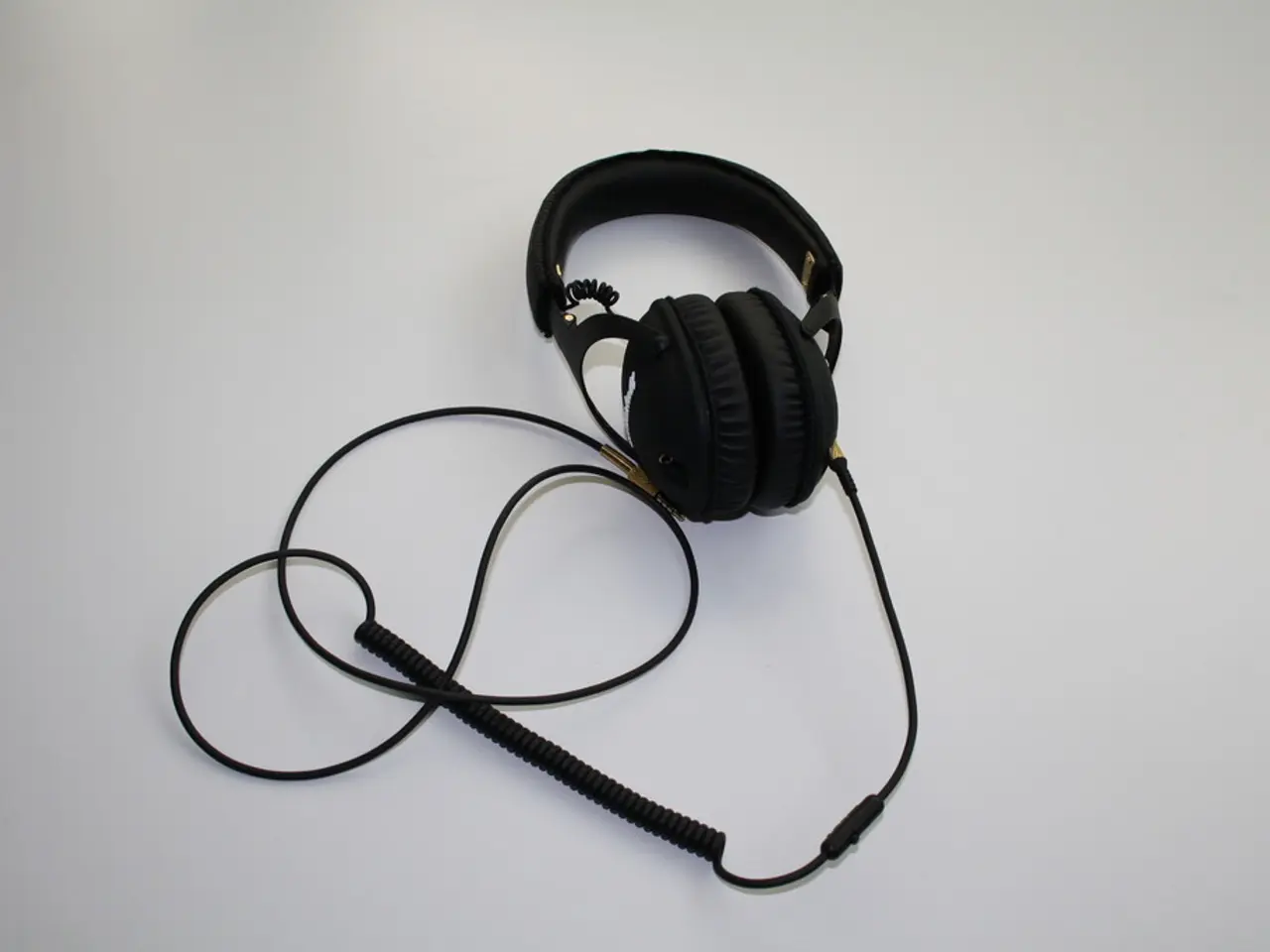
To connect a wired HyperX headset to a PC, plug the control box into the PC using either a USB connector or a 1/8" (3.5mm) jack, and then connect the plugs to the correct ports. If you encounter connection issues, try switching ports, updating drivers, cleaning jacks with compressed air, or resetting both the headset and the dongle as needed.
To set the HyperX headset as the default audio device, open the Control Panel, select "Manage Audio Devices," find the HyperX headset in the list under the Playback tab, highlight it, click "Set Default," and click Apply and OK to lock in the changes.
Updating Firmware for HyperX Headsets
To update the firmware for a HyperX headset, visit HyperX's support page or check Intel and Realtek sites for fresh drivers. The firmware update process typically takes around 20 seconds.
Connecting and Troubleshooting Wireless HyperX Headsets
Connecting a wireless HyperX headset to a PC involves using the USB wireless adapter. Turn on the headset and wait for the adapter's LED to blink. Press the reset button on the dongle if needed. Set HyperX as the default playback and recording device under Windows sound settings.
If the headset fails to connect or is intermittently disconnecting/reconnecting, check for driver conflicts in Device Manager. Disabling conflicting drivers can help resolve the issue. Navigating Windows settings for devices can be complex, so ensure you check under "Bluetooth & devices" or "More devices and printer settings" to verify the headset status.
Troubleshooting a HyperX Headset Not Connecting to PC
If your HyperX headset is not connecting to your PC, start by ensuring you are connecting the headset correctly. If your model uses a USB dongle, connect that to the PC and avoid relying solely on the 3.5mm jack. Try multiple USB ports to rule out port issues.
Install and run the HyperX NGENUITY software for your headset and check for firmware updates, as these can resolve recognition problems. If the headset still fails to connect, restart your PC after installing the software with the headset connected. Avoid enabling 7.1 surround sound from the HyperX software because it is software-based and often degrades audio quality.
If the headset still has issues, check for driver conflicts in Device Manager. Disable conflicting drivers to help resolve the issue. Navigating Windows settings for devices can be complex, so ensure you check under "Bluetooth & devices" or "More devices and printer settings" to verify the headset status.
If your headset cable is physically damaged or causing connection issues, consider a hardware repair by replacing or resoldering the headset cable.
Additional Tips
- Verify the input device is set to your HyperX headset or mic in Windows Sound Settings, especially for microphone issues.
- For wireless HyperX headsets like Cloud 3, troubleshoot disconnecting/reconnecting by ensuring stable USB dongle connection and applying any available software fixes or firmware updates.
- With Bluetooth models such as HyperX Cloud Mix, turn on pairing mode and add the headset through "Bluetooth & Devices" settings. Choose the stereo profile for clear sound.
Connecting a Bluetooth HyperX Headset to Your PC
To pair a Bluetooth HyperX headset with your PC, turn off the headset completely, hold the power button for five seconds until you see the LED light blinking red and blue, click "Add Device" in Bluetooth & Devices settings, select "HyperX Cloud MIX" from the available devices, and confirm pairing or enter any PIN code shown.
For desktops without built-in Bluetooth hardware, plug in a USB Bluetooth adapter such as those from brands like ASUS or TP-Link.
After pairing, open the Windows Start menu, set "HyperX Cloud MIX" as both default output and input device under Sound Settings, adjust levels, and set chat apps to use the HyperX Headset.
Future Developments
In 2025, HyperX headsets may stop using old USB dongles or thick cables, and gamers and audiophiles could expect instant Bluetooth pairing with PCs, as well as a stronger 2.4 GHz signal for lossless sound.
- To ensure superior sound quality during sports events and gaming tournaments, consider updating your HyperX wireless headset's firmware regularly to keep up with the latest technologies.
- For a seamless sports broadcasting experience, wireless HyperX headsets could benefit from future developments such as instant Bluetooth pairing with PCs and a stronger 2.4 GHz signal for lossless sound transmission.